Getting Started
- Creating Your First Project
- Understanding the Board View
- Uploading covers, manuscripts and other assets
Creating Your First Project
A project in Scryla represents a single book, novella, or writing project.
To create one:
-
Click New Project on your dashboard.
-
Enter a project title.
-
(Optional) Add series information if the book belongs to a series.
-
Choose a board background colour if you wish.
Once created, your project opens to the Board View, where you can begin adding chapters, scenes, notes, characters, and more.
Projects can be archived safely if you want to hide them from your dashboard without deleting them.
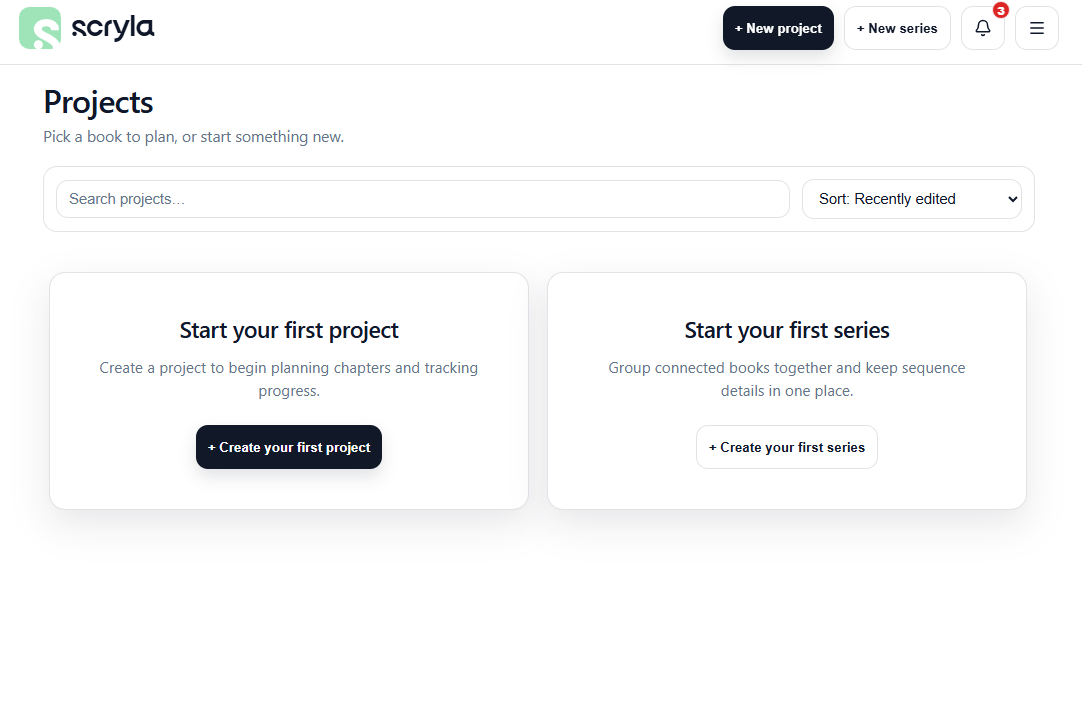
Watch the video below for a full rundown of creating your first project, or head back to the main Documentation page for more guides.
Understanding the Board View
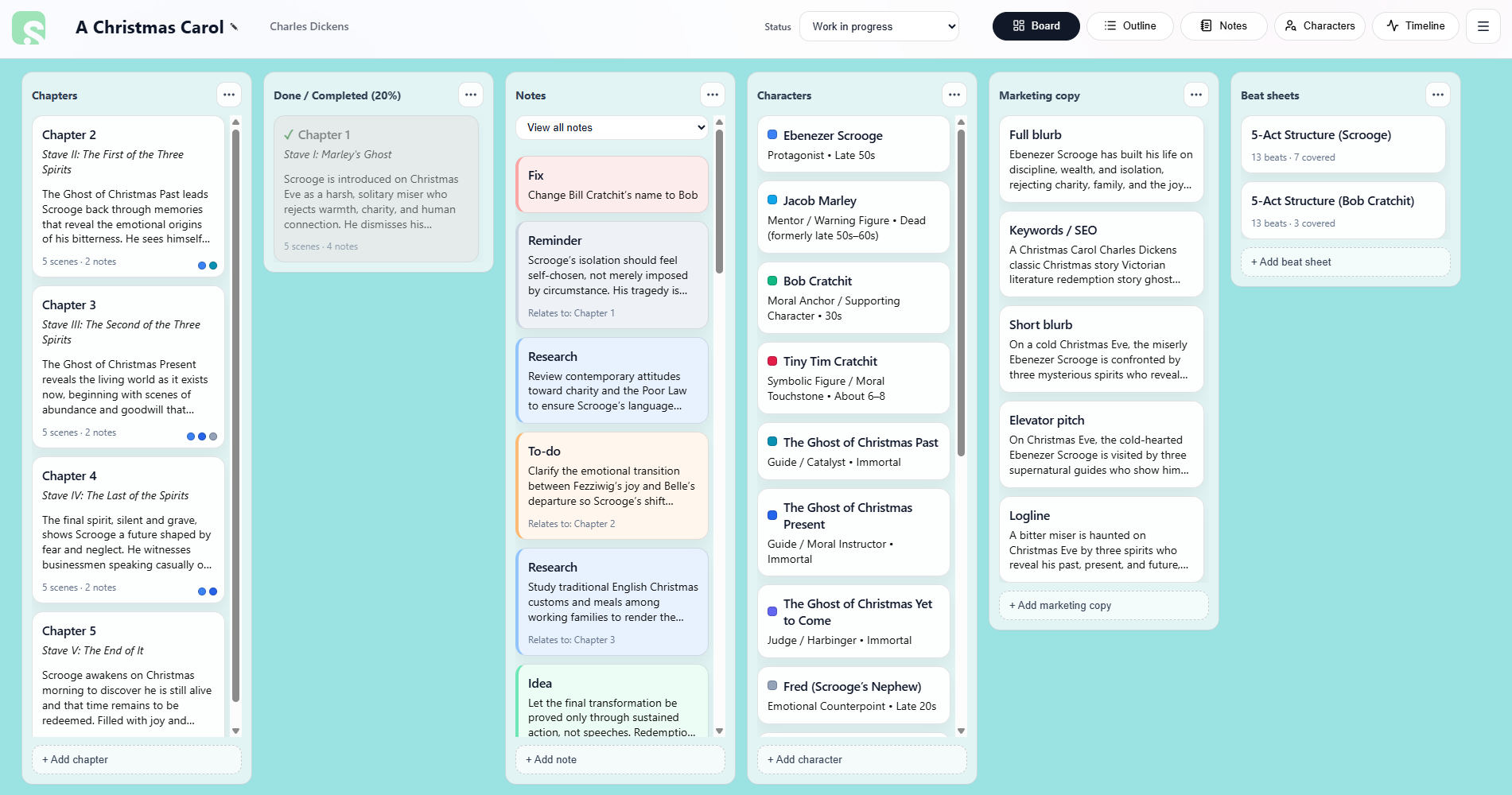
The Board View is the main workspace in Scryla.
Each column represents a different type of planning element, such as:
• Chapters
• Scenes
• Notes
• Characters
• Marketing copy
• Beat sheets
You can drag and reorder items within each column to keep your project organised as your story evolves.
Cards can be archived instead of deleted, allowing you to keep alternate ideas without losing them.
Note: If you do wish to delete a card, you must archive it first. Scryla protects against accidental deletion so that you never lose something you later need access to. Cards can sit safely in your archive, or you can permanently delete them.
Uploading covers, manuscripts and other assets
You can upload your book's cover, keep track of manuscript drafts, add character art, and store your research documents all inside Scryla for Authors.
Note: audio and video files are not supported, but you can upload images and documents to your project. See below for a complete list of supported filetypes.
Supported file types by location:
Manuscripts: Use the Manuscripts area to upload and store your working drafts as well as your final version. Marking a manuscript as "Final" pins it to the top of the list.
- .doc
- .docx
- .txt
- .rtf
- .md
- .epub
- .mobi
- .kpf
- .kcb
Note attachments: Use the Notes area to upload research files, maps, studies and more.
- .doc
- .docx
- .txt
- .rtf
- .md
- .jpg
- .jpeg
- .png
- .webp
Character profile image: You can upload an image to each character, whether that's character art or an avatar.
- .jpg
- .jpeg
- .png
- .webp
Project cover image: This is your book cover area. Only image files are allowed.
- .jpg
- .jpeg
- .png
- .webp
Marketing copy graphics: Store and keep track of all your ebook cover files, print cover files, promo graphics or ad creative all in one place. Now you'll never have to hunt through a hundred folders to find the files you need.
- Ebook cover: .jpg, .jpeg, .png, .webp
- Print cover: .jpg, .jpeg, .png, .webp, .pdf
- Promo graphic / ad creative: .jpg, .jpeg, .png, .webp, .pdf