Views & Navigation
Outline View
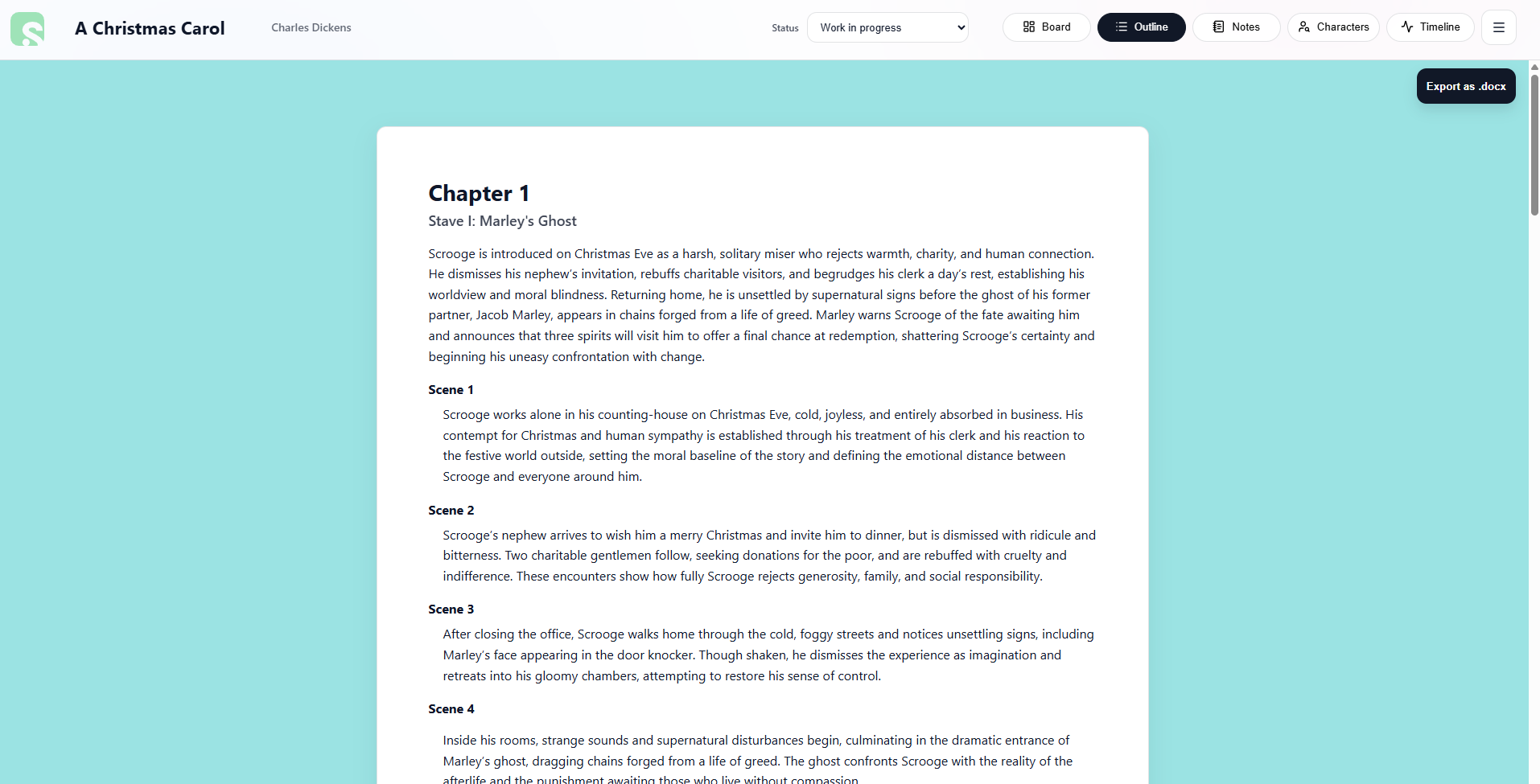
The Outline View displays your entire story structure as a continuous document.
It includes:
• Chapter titles and subtitles
• Chapter overviews
• Scene descriptions
This view is ideal when reviewing structure or sharing your outline with editors or collaborators.
Note: You don't need to do anything with the Outline View. Your story outline is automatically built from the chapter overviews and scene descriptions you add in the Board View.
From the Outline View, you can click the "Export as .docx" button (top-right or bottom-center) to download the entire outline as an editable Microsoft Word document to either edit offline, review or share with others.
Timeline View
The Timeline View gives you a visual overview of your story structure.
It combines chapters, scenes, narrative signals, character arcs, and beats into a single timeline so you can quickly identify pacing issues or gaps in your narrative.
Clicking any chapter in the timeline jumps directly to that chapter in your project.
The Timeline View is split into two sub-views:
Narrative overview

The Narrative overview shows you a color-coded graph of your scenes or chapters, based on the intensity and story impact options you selected on the Board view. Block height reflects intensity, and color maps to impact. Scenes you haven’t tagged will default to Medium intensity and Transition impact. You cna use this graph to look for runs of low intensity (pacing lulls) or high intensity (fatigue/spike risk) that may suggest structural adjustments.
Note: low or high runs doesn't mean your story structure is wrong, that may be exactly what you intended, but the Narrative ovweview graph will help point out any lull or spike you hadn't previously accounted for.
Timeline structure
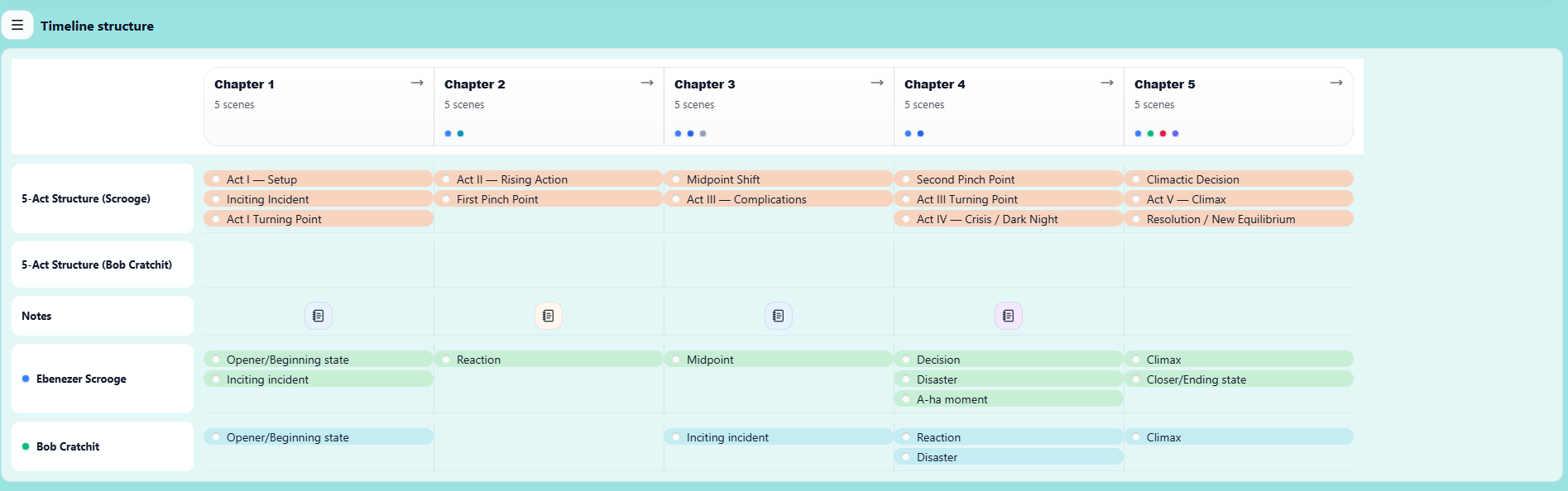
The Timeline Structure section helps you map story structure, character arcs, and notes against the progression of your chapters.
Each column represents a chapter in your project, allowing you to visualise how important narrative elements unfold across the story.
This section is designed to give you a high-level structural overview of your book while still letting you organise specific story beats.
Rows such as 5-Act Structure allow you to visualize major narrative beats along the timeline of your story (which you've chosen from the Beat Sheets section of the Board view).
Examples include:
-
Inciting Incident
-
Rising Action
-
Midpoint Shift
-
Second Pinch Point
-
Climax
-
Resolution
By attaching these markers under the relevant chapters, you can quickly see whether your story structure is balanced and whether key moments occur at the right point in the narrative.
You can also add multiple structural rows to compare different structural models or track alternative story frameworks.
Character Arcs
Character rows allow you to track how individual characters develop across the story.
For example, you might mark:
-
A character’s inciting moment
-
Key reactions or decisions
-
Moments of failure or revelation
-
Their final climax or transformation
This helps ensure that character development progresses alongside the main plot rather than disappearing for long stretches of the story.
Notes
The Notes row allows you to add reminders, world-building ideas, or structural comments tied to a specific chapter.
These notes can be used to track pacing issues, unresolved plot threads, or ideas that may need to be developed later.
Tag notes against specific chapters in the Notes column of Board view, or from the Notes view.
Why Use Timeline Structure?
The Timeline Structure view is designed to help you answer questions such as:
-
Do my major plot beats occur at the right points in the story?
-
Do my character arcs evolve consistently throughout the narrative?
-
Are there chapters where nothing significant happens?
-
Are key characters disappearing for too long?
By seeing everything aligned across the chapter timeline, you can quickly identify pacing problems or structural gaps.