
Reordering Chapters and Scenes
Scryla allows you to easily reorganize your story by dragging and dropping chapters and scenes.
This makes it simple to experiment with story structure as your outline evolves.
Reordering Chapters

To change the order of chapters:
-
Open your project in Board View.
-
Locate the Chapters column.
-
Click and drag a chapter card.
-
Drop it in the new position.
All scenes inside the chapter will move with it automatically.
Note: on mobile, tap and hold a chapter with your finger in order to move it.
Reordering Scenes
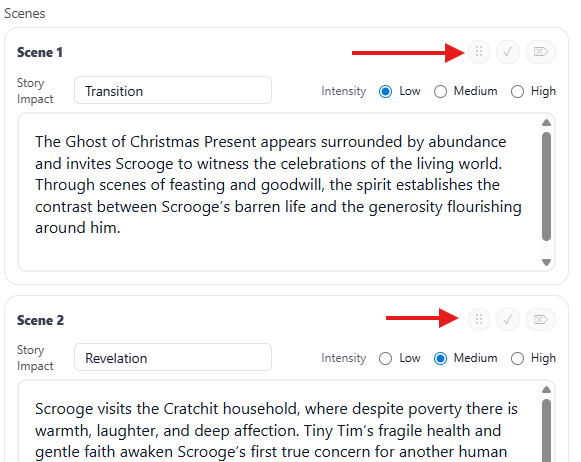
Scenes can also be rearranged within a chapter.
To move a scene:
-
Open the chapter containing the scene.
-
Click and drag the scene card's drag handle (the six dots on the top-right of each scene).
-
Drop it in the desired position.
This allows you to quickly test different story flows without rewriting or copying content.
Note: If you're planning a large structural change, consider archiving scenes instead of deleting them so you can restore them later if needed.